Image to Video AI: How to Turn Any Photo into a Video in 2026
Learn how to turn a still image into a polished AI video. Compare workflows, write better motion prompts, avoid common artifacts, and create your first image-to-video clip with VidFlux.
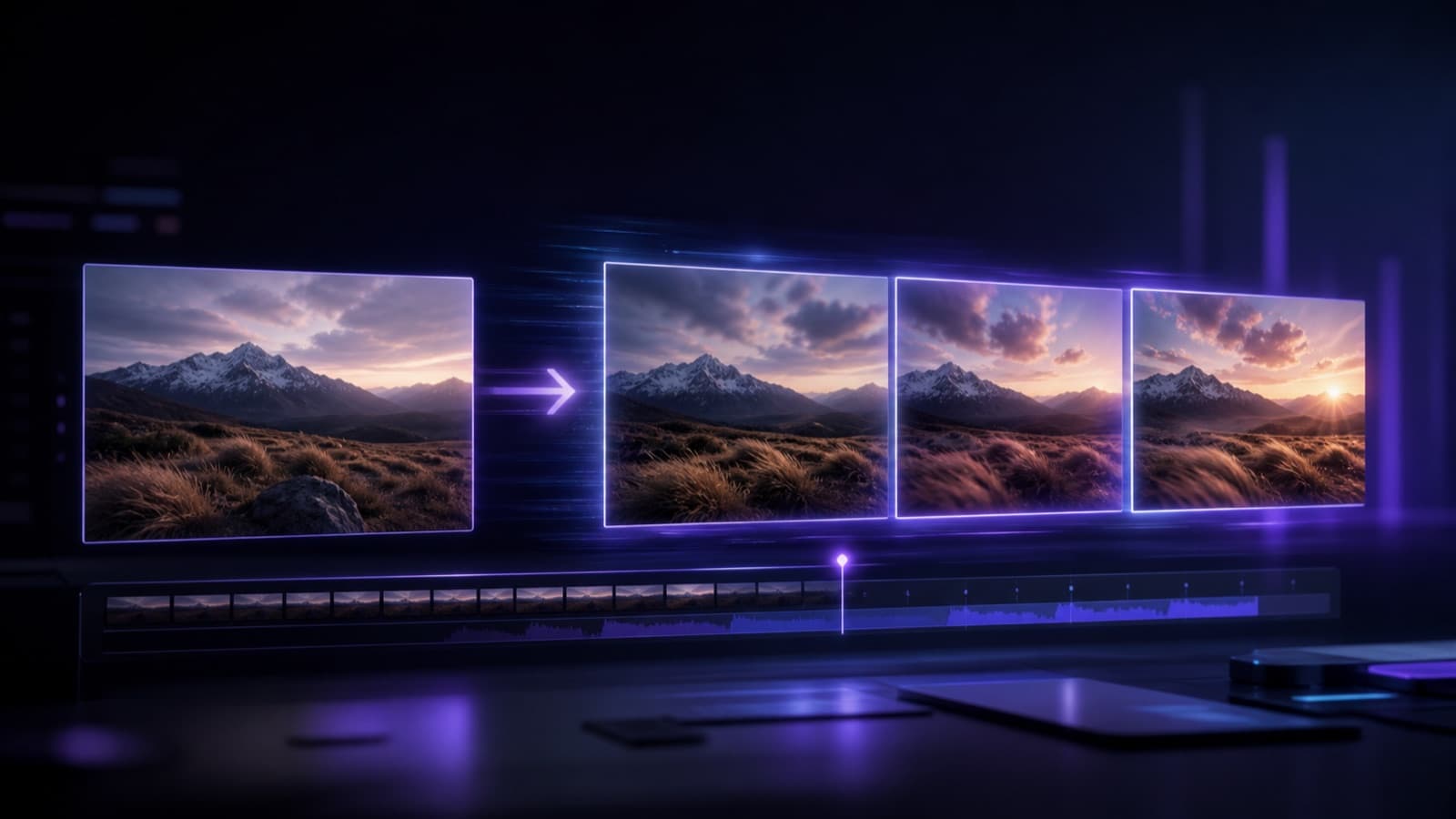
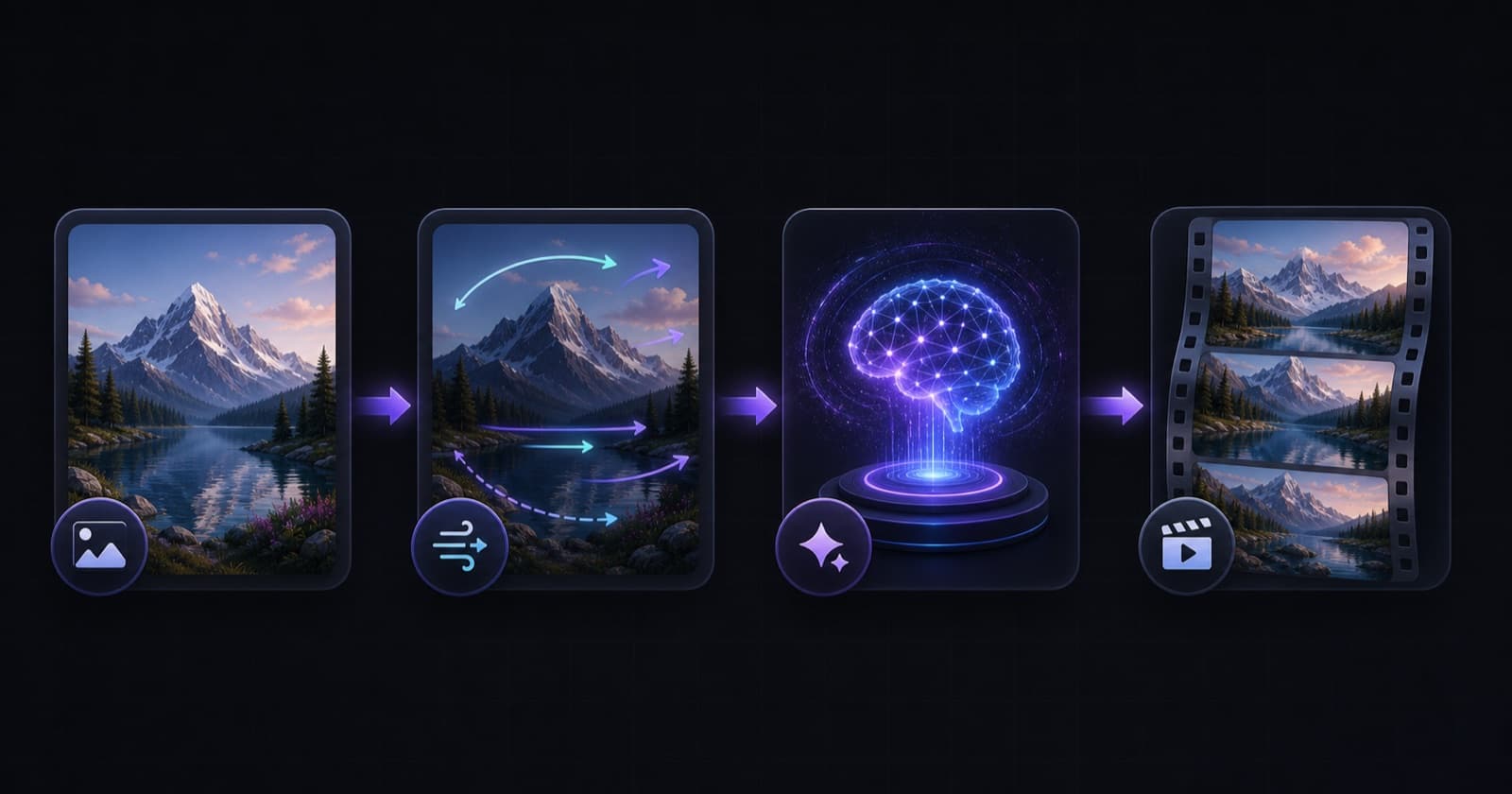
Image to video AI turns a still photo, illustration, product shot, or AI-generated image into a moving clip. Instead of building a scene frame by frame, you upload one image, describe the motion you want, and let an AI video model create the frames between the starting point and the finished sequence.
That simple description hides the real challenge behind most searches for an AI image to video generator: people do not merely want movement. They want a usable video with stable subjects, believable camera motion, clean details, and the right format for a social post, ad, product page, or story. This guide explains how to get that result, even if this is your first AI video.
Quick answer: Start with a sharp, well-composed image; describe one clear subject action and one camera movement; generate a short clip; review identity, edges, and motion; then refine only the weakest part. You can follow the steps below in the VidFlux image-to-video tool.
What is image-to-video AI?
An image-to-video model uses your uploaded image as the visual starting point. It estimates depth, objects, people, lighting, and possible motion, then synthesizes a sequence of new frames. The original image anchors composition and identity more strongly than a text-only prompt, while your motion prompt tells the model what should change over time.
This workflow is useful when you already have the right look but need motion. Typical use cases include:
- animating product photography for paid ads;
- adding camera movement to travel and landscape photos;
- turning character artwork into short story shots;
- creating motion from portraits for social content;
- producing B-roll from campaign key visuals;
- testing a video concept before a full production shoot.
Image-to-video is different from text-to-video. Text-to-video invents the scene and motion together, which provides more freedom but less visual control. Image-to-video begins with a concrete visual reference, so it is often the better choice for brand assets, product consistency, or a character that must remain recognizable.
How to turn an image into a video with AI
1. Choose a strong source image
The source image is the first frame and the visual contract for the whole clip. Use an image with a clear subject, intentional framing, sufficient resolution, and believable anatomy. Avoid heavily compressed files, tiny faces, overlapping limbs, unreadable product labels, or important objects cut off at the edge.
Leave visual room in the direction of movement. If a person should walk to the right, empty space on that side gives the model somewhere to move. For a camera push-in, use a source with a strong focal point and enough surrounding context. For vertical social video, begin with a portrait composition instead of forcing a wide image into a narrow crop.
2. Pick the right model and format
Different models prioritize motion, prompt adherence, realism, speed, or stylization. VidFlux gives you one workflow for multiple AI video options, including dedicated pages for Kling AI, Veo 3.1, Sora 2, and Seedance. Choose based on the shot rather than assuming one model is best for every image.
Before generation, decide where the video will be used:
| Destination | Recommended shape | Creative priority |
|---|---|---|
| TikTok, Reels, Shorts | 9:16 vertical | Immediate subject motion and a clear focal point |
| YouTube or landing page | 16:9 landscape | Cinematic composition and controlled camera movement |
| Feed post or product card | 1:1 square | Centered subject and readable silhouette |
| Ad variation testing | Match placement | Consistent subject with several motion concepts |
Keep the first test short. A five-second clip is easier to control, cheaper to iterate, and long enough to judge whether the core motion works.
3. Write a motion-first prompt
A useful image-to-video prompt answers four questions:
- What moves? Name the subject or environmental element.
- How does it move? Describe speed, direction, and intensity.
- What does the camera do? Use one camera instruction.
- What must stay stable? Protect identity, composition, or product geometry.
Use this reusable formula:
Subject action + environmental motion + camera movement + lighting continuity + stability constraint.
For example:
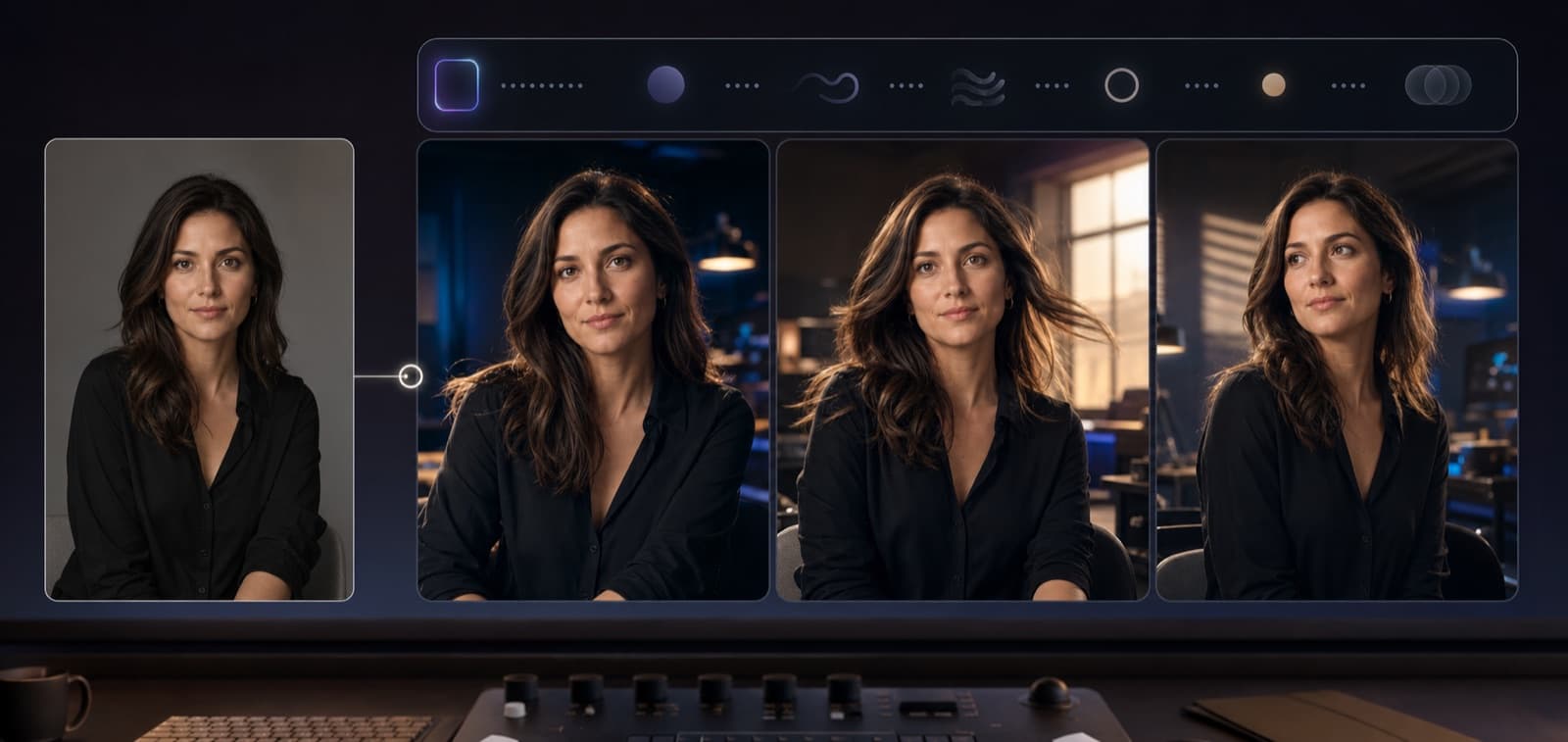
The woman looks gently toward the window and blinks naturally. A light breeze moves only a few strands of hair and the curtain. The camera performs a slow, smooth push-in. Warm afternoon light remains consistent. Preserve her facial identity, clothing, and background geometry.
This is more controllable than “make this image cinematic.” It translates the idea into visible actions without overloading the model.
4. Generate, inspect, and refine
Treat the first output as a diagnostic pass. Watch it at normal speed and again frame by frame. Check:
- identity: does the face, product, or character remain recognizable?
- motion: does movement begin naturally and remain physically plausible?
- edges: do hands, hair, text, and object boundaries warp or flicker?
- camera: is the shot smooth, or does the frame drift unexpectedly?
- continuity: do lighting, colors, and background structures remain stable?
Change one variable per iteration. If the face drifts, reduce subject movement and strengthen the identity constraint. If the video feels static, add a specific environmental action or a modest camera move. If everything moves at once, simplify the prompt.
5. Finish the clip for its destination
Generation is not always the final step. Trim weak opening or closing frames, combine the best shots, add licensed audio, and export for the target platform. VidFlux also provides tools for video trimming, video compression, and video watermarking, so the workflow can continue without turning a promising output into an oversized or poorly framed upload.
Best image-to-video AI prompt examples
Product video prompt
The camera slowly orbits ten degrees around the product while soft highlights travel across the surface. The product stays fixed in shape, scale, color, and label placement. The background remains minimal and stable. Premium studio lighting, smooth motion, no sudden zoom.
Best for ecommerce cards, launch teasers, and ad creative. If label accuracy is essential, keep movement restrained and avoid angles that require the model to invent hidden packaging details.
Portrait animation prompt
The subject breathes naturally, blinks once, and makes a subtle confident smile. A gentle breeze creates minimal hair movement. Slow camera push-in with shallow depth of field. Preserve facial identity, age, skin texture, clothing, and the original background.
Best for creator intros and editorial storytelling. Avoid requesting speech unless the selected workflow specifically supports synchronized dialogue.
Landscape motion prompt
Clouds move slowly across the valley, grass sways gently in the foreground, and distant mist drifts between the mountains. The camera glides forward at a steady pace. Maintain realistic scale, natural daylight, and stable terrain with no new objects.
Best for travel content, ambience, and cinematic B-roll.
Illustration or character prompt
The illustrated character turns their head slightly and raises one hand while fabric and background particles move gently. The camera remains mostly locked with a subtle parallax effect. Preserve the original drawing style, line quality, proportions, colors, and character identity.
Best for concept art and short narrative beats. Ask for one action at a time; complex choreography often forces the model to invent too much between frames.
How to choose the best AI image-to-video generator
Searches for the best image-to-video AI often assume there is a universal winner. A better evaluation starts with your output criteria:
- Visual consistency: Can it preserve faces, products, and illustration style?
- Motion quality: Does it handle the kind of movement your shot needs?
- Prompt control: Can you specify camera and subject motion without unexpected changes?
- Speed and cost: Can you afford several iterations rather than betting on one render?
- Formats: Does it support the aspect ratio and duration required by your channel?
- Workflow: Can you compare models and manage outputs without rebuilding the project?
For a practical test, use the same source image and a nearly identical prompt across two models. Compare the specific failure that matters most to you, not only the most dramatic frame. A restrained clip that preserves the product may outperform a spectacular clip that changes its design.
Common problems and how to fix them
The subject's face changes
Reduce head rotation and fast movement. Use a larger, sharper face in the source image. Add a direct constraint such as “preserve facial identity, age, expression, and skin texture.” If the shot still fails, use a simpler camera move and let the background provide motion.
Hands or objects deform
Do not begin with unclear or partially hidden hands. Request smaller gestures, avoid crossing objects, and keep the clip short. For products, explicitly preserve geometry, label placement, and proportions.
The result looks static
“Animate this” gives the model little direction. Specify one foreground action, one background action, or one camera movement. Even subtle motion—steam rising, reflections shifting, a slow push-in—can make a clip feel intentional.
Everything moves too much
Remove extra adjectives and competing actions. Replace “dynamic, epic, dramatic movement everywhere” with measurable direction: “slow camera dolly forward; leaves move gently; building remains fixed.”
The video flickers
Use a cleaner source image, reduce fine repeating patterns, lower motion intensity, and protect lighting continuity. Text and tiny details are particularly fragile; consider adding typography after generation rather than asking the video model to preserve it across every frame.
Is there a free image-to-video AI generator?
Many users search for image to video AI free because they want to test quality before committing. A useful free trial should let you validate the real workflow—not merely see a demo. Test a representative image, the aspect ratio you need, and at least one refinement. Remember that AI video generation consumes significant compute, so unlimited free generation often comes with limits in speed, duration, resolution, watermarking, or queue priority.
VidFlux is designed to make the first experiment straightforward. Open the free image-to-video AI generator, upload an image you have permission to use, choose a model and format, then start with one of the prompts above.
Image-to-video AI FAQ
Can AI turn a still image into a video?
Yes. An image-to-video model generates new frames from a source image and a motion prompt. Results are strongest when the input has a clear subject and the requested movement is specific and physically plausible.
How long should an AI-generated clip be?
Start with roughly five seconds. Short shots are easier to control and combine well in edits. Extend the idea only after the subject, camera, and background behave correctly.
Can I animate AI-generated images?
Yes, provided you have the right to use the source. AI illustrations often work well because composition is deliberate, but the prompt should explicitly preserve the original art style and character design.
What image format should I upload?
Use a high-quality PNG, JPG, or other format supported by the generator. Resolution, clarity, composition, and aspect ratio matter more than choosing PNG over a well-exported JPG.
Can image-to-video AI preserve product text?
It may preserve large, clear text during restrained motion, but small labels can flicker or mutate. For brand-critical typography, keep motion modest and add final text in an editor after generation.
Is it safe to upload any photo?
Only upload content you are authorized to use. Obtain permission for identifiable people, respect intellectual-property rights, and avoid misleading or harmful impersonation. Review the service terms and the rules of the platform where you publish.
Create your first image-to-video clip
The fastest path to a good result is not a longer prompt; it is a clearer creative decision. Choose a strong image, define one subject action and one camera movement, preserve what matters, and refine the weakest element after the first generation.
Turn an image into a video with VidFlux and use this starter prompt: “Add subtle natural subject motion, a slow camera push-in, consistent lighting, and stable identity. Preserve the original composition and details.”
Author